Working with Jupyter
In this training, you write and run Python code in Jupyter notebooks, in the lab. This page shows you around. Follow along in the lab as you read.
A one-page version is available as a PDF: Jupyter Cheatsheet.
Log in
Open https://lab.deshaw.pipal.in/. Log in with your first name, in lowercase, and the password shared in class.
Open welcome.ipynb
After you log in, you see the lab. Your files are on the left, and the Launcher, for creating new files, is on the right. Your home folder already has a notebook, welcome.ipynb. Double-click it to open it.
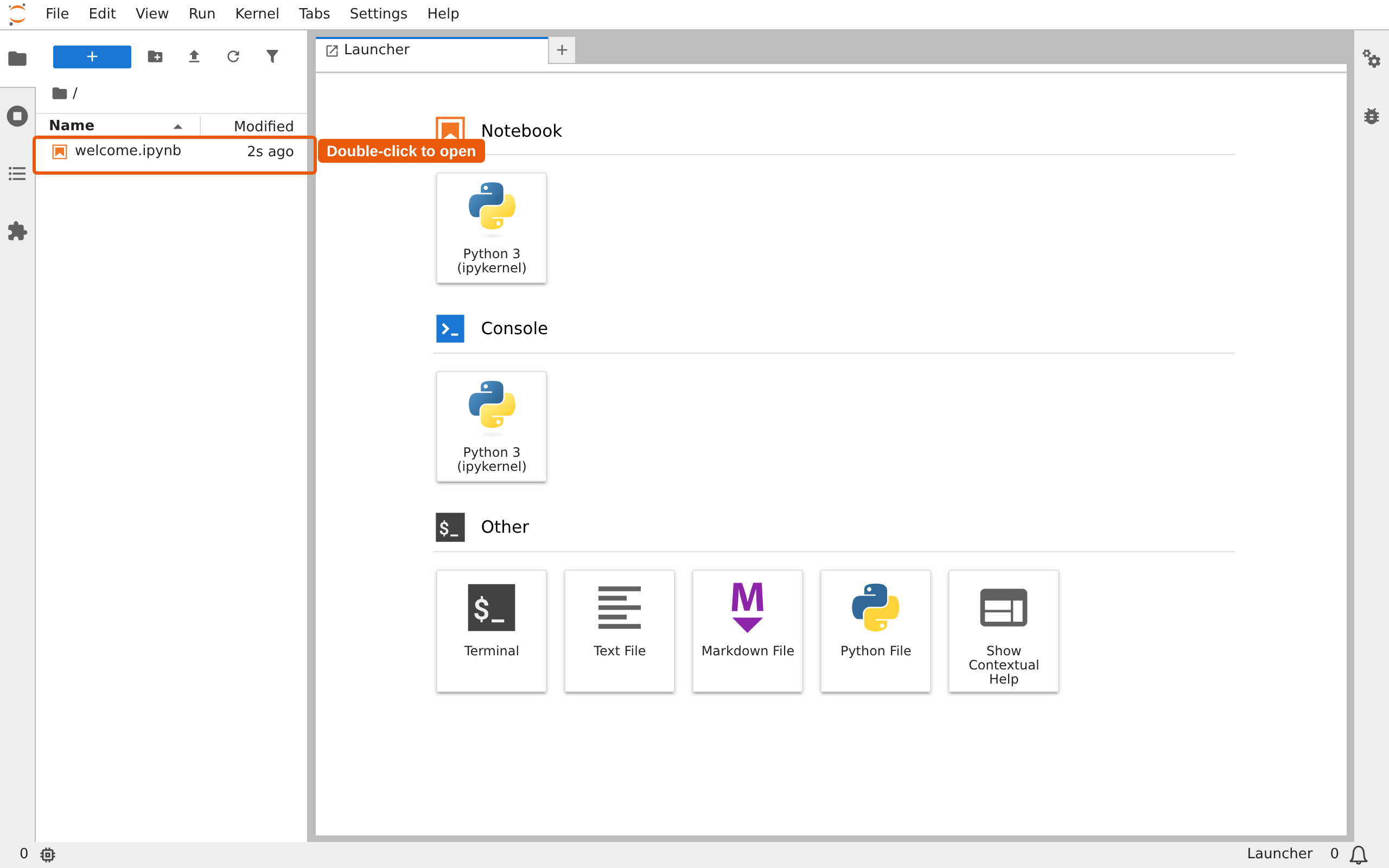
The notebook
The notebook opens in a tab on the right. A notebook is a list of cells: some have notes, and some have code for you to run.
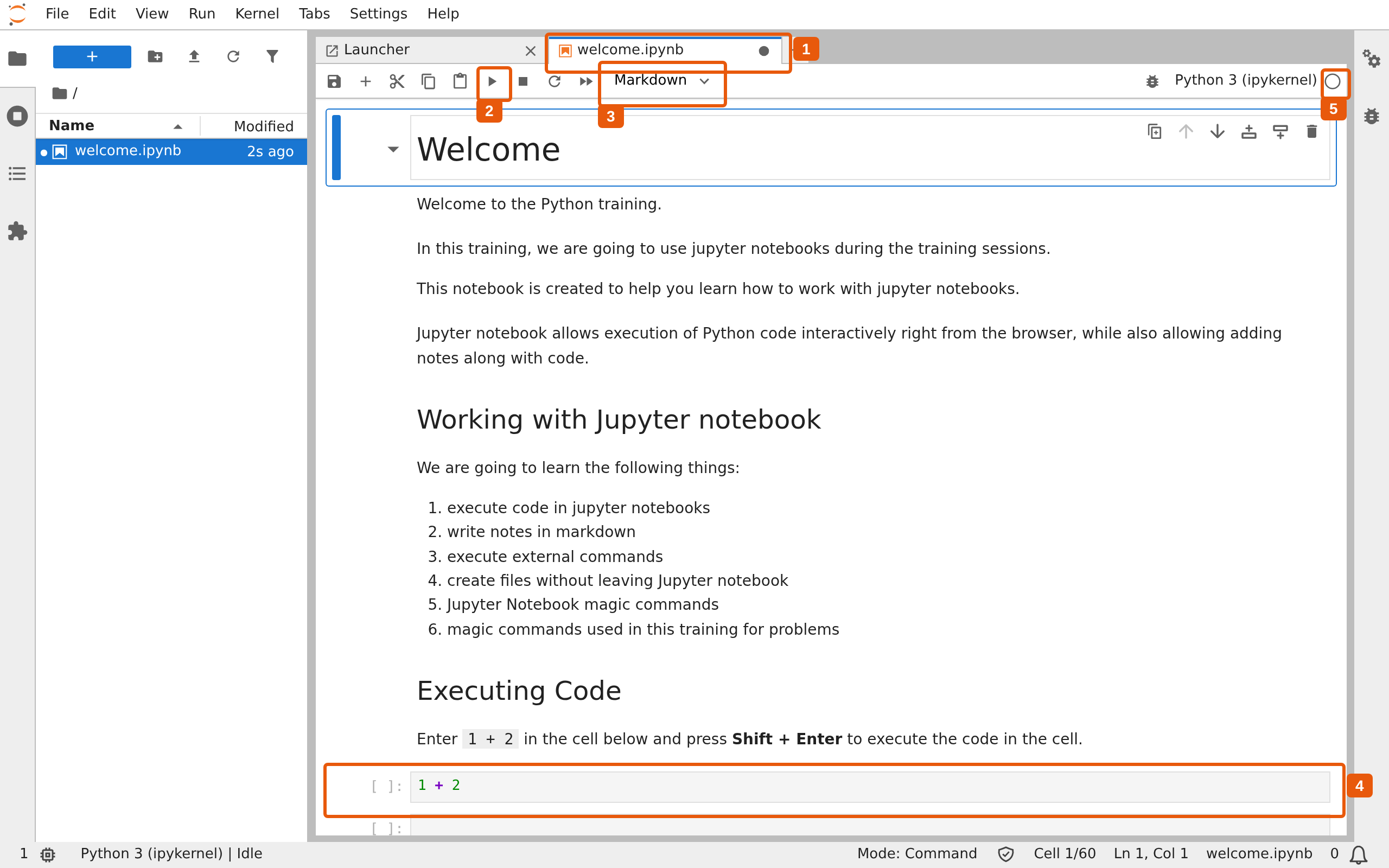
- The notebook’s tab. Each file you open gets a tab.
- The run button runs the selected cell, and selects the next one.
- The type of the selected cell: Code or Markdown.
- A code cell, with
1 + 2in it. - The kernel status. The kernel is what runs your code: the circle is filled while code is running, and empty when it’s done.
JupyterLab saves the notebook every two minutes. Press Ctrl + S to save it right away.
Run code
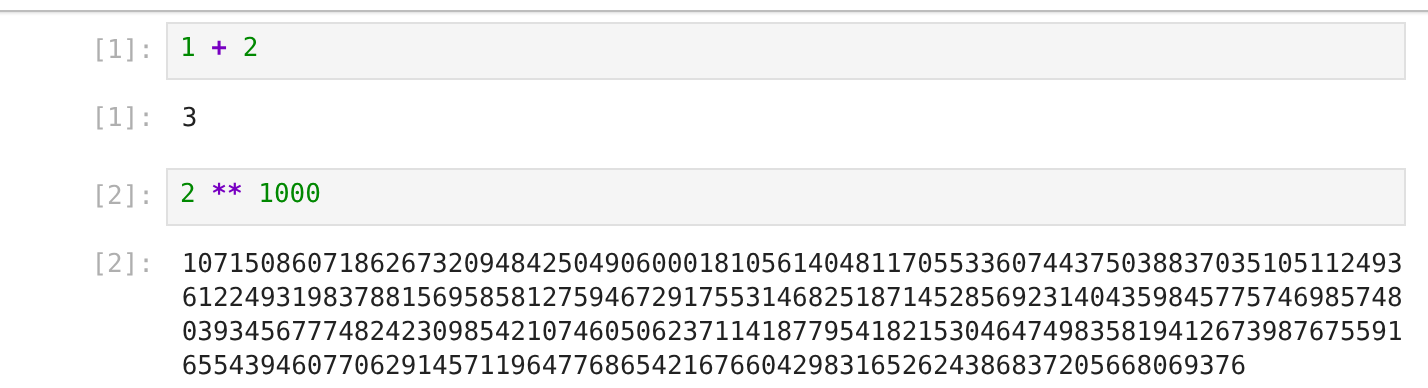
Click a code cell, type Python code in it, and press Shift + Enter to run it, or click the run button. The result appears below the cell.
Write notes in markdown
A cell can also hold notes, written in markdown. In the toolbar above the notebook, change the dropdown from Code to Markdown, and type:

Press Shift + Enter to show it formatted. Double-click it to edit it again.

See the Markdown Cheat Sheet for more.
Run external commands with !
Start a line with ! to run it as a terminal command instead of Python code.
!pwd/home/jupyter-alice!python --versionPython 3.14.10Try !ls and !ls -l too.
Create files with %%file
Put %%file and a filename on the first line of a cell. When you run it, the lines below are saved into that file.
%%file five.txt
one
two
three
four
five
Writing five.txt!wc -l five.txt5 five.txtThis is handy for writing a Python program and running it:
%%file hello.py
print("hello world")
Writing hello.py!python hello.pyhello worldMagic commands
Commands like %%file are Jupyter Notebook magic commands. A line magic starts with % and works on that one line. A cell magic starts with %% and works on the whole cell, so it must be the first line of the cell.
%time measures how long one line takes:
%time sum(range(1000000))CPU times: user 17 ms, sys: 60 µs, total: 17 ms
Wall time: 23.1 ms
499999500000%%time measures the whole cell:
%%time
numbers = range(1000000)
sum(numbers)
CPU times: user 21.5 ms, sys: 70 µs, total: 21.6 ms
Wall time: 22 ms
499999500000Solve the training’s problems
%load_problem is a magic command to load a problem. It shows the problem’s description, and adds a cell below it to write your code in.
%load_problem squareProblem: Square
Write a function square to compute the square of a number.
>>> square(4)
16
You can verify your solution using:
%verify_problem squareThis is the cell it adds:
# your code hereWrite the function in that cell, in place of # your code here, and run it:
def square(x):
    return x * x
Then check it:
%verify_problem squareFound 2 checks
✓ verify square(2)
✓ verify square(4)
🎉 Congratulations! You have successfully solved problem square!!If a check fails, fix the function, run its cell again, and run %verify_problem again.